SitePublisher AI Pro · Tier 2 Links
Give your main article a supporting cast.
Create supporting articles on your connected WordPress websites, with contextual links back to the main article. Keep the destinations, images, publication status and client results together in one workspace.
Up to 10 supporting articles per main article · Your own OpenAI API key
Inside SitePublisher AI Pro
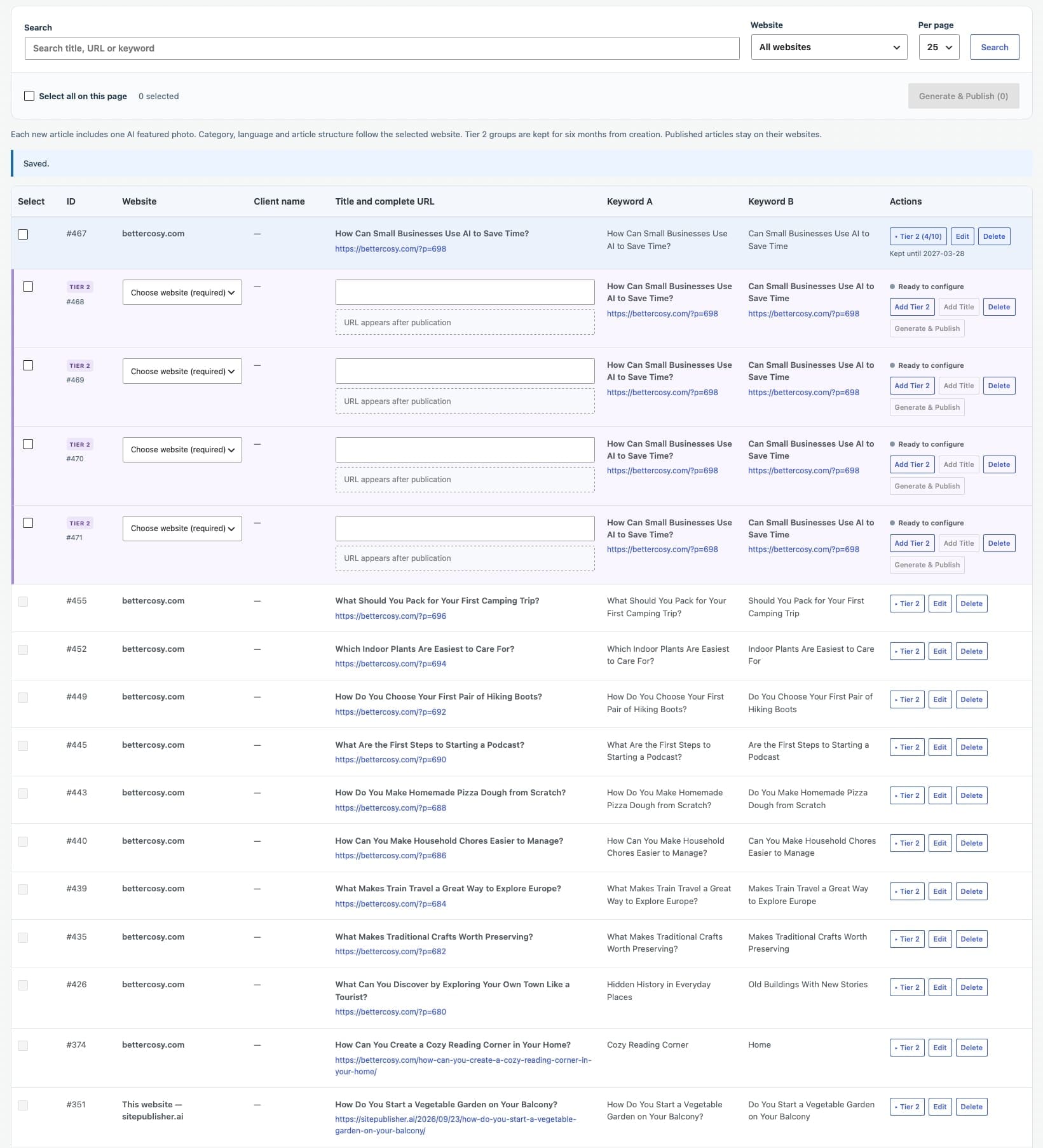
See the complete Tier 2 Links workspace
Explore the full screen below. Click the image to open the original and zoom in on any field.
Connected content
One main article. Up to ten new perspectives.
A Tier 2 article is a supporting article that links to your main article. Choose relevant destinations and give each publication useful context for its own audience.
Choose every destination
Select a connected website for each supporting row. Its saved default category, language and article structure guide the result. A website is required before the row can start.
Link back naturally
The main article’s keywords become contextual links to its published URL. Links are placed around the middle of the supporting article, within the body text.
Include an AI featured image
Generate a new title, supporting text and a relevant featured image as part of the publication workflow. Text and image requests use your connected OpenAI account.
Work row by row or in a selection
Use Generate & Publish for one row, or process selected eligible rows on the current page. Every row keeps its own destination and status.
Keep client work connected
Supporting articles inherit the main article’s client when one is assigned. Published results appear in Clients & Gigs with their link to the parent article. Working without a client remains fully supported.
Find the result again
Search titles, URLs and keywords, filter by website and show 25, 50 or 100 records per page. Expand a main article to see its supporting rows and complete publication URLs.
Built into Single Article Pro
Plan supporting articles while you write the brief.
Select your optional client beside Destination website. Enable Create Tier 2 articles after publishing and choose a website for each supporting article. Review and publish the main article first; its confirmed public URL starts the supporting workflow.
Prepare one complete brief
Use up to five keyword and URL pairs for the main article. Add supporting destinations before queueing it.
Publish the main article
Saving a draft does not start the Tier 2 publications. Supporting jobs begin after the main article is successfully published.
Follow everything in Tier 2 Links
The same Tier 2 workspace tracks supporting articles created directly or through Single Article.
Clear status and reporting
See what is running, published or needs attention.
Blue indicates active work, green confirms publication and red identifies an error. Status text accompanies the colour. Inspect an error and retry the existing row when appropriate.
Export the selected results
Generate a branded PDF for one result or selected rows in Clients & Gigs. Include full article URLs, keyword links and the relationship between supporting and main articles.
Explore Publication Reports →Keep Tier 2 records for up to six months
The Tier 2 workspace retains its records for up to six months. Removing or expiring a local record does not delete articles already published on destination websites.
Read the full operating guide →Included in Pro
Bring supporting articles into your publishing workflow.
Available with Annual Pro and Founders Lifetime. Request a demo to explore the workflow before choosing a plan.